1. นำ JSF Technology มาใช้ใน Project
JSF (JavaServer Faces) เป็น Java Web Application Framework ที่เป็นที่ยอมรับเป็นมาตรฐานในปัจจุบันโดย Sun เป็นผู้ออก Spec.
ประโยชน์
- เพิ่ม Productivity งานออกได้เร็ว
- ลดความซับซ้อนในการ Coding
- Debug ได้ง่าย
- มี Standard Coding
- ใช้ MVC model ในการ Develop ทำให้แยกส่วนการ Develop ได้เด็ดขาด ทำให้ง่ายในการ Maintenance โดยมีผลกระทบต่อกันน้อยในแต่ละส่วน
2. นำ iReport และ JasperReport มาใช้ใน Project
iReport เป็นเครื่องมือในการสร้าง Report โดยที่มีความสามารถเทียบเท่ากับ Crystal Report แต่เป็น Open Source
JasperReport เป็น Library ในการออก Report ใน Format ต่างๆเช่น ReportViewer, PDF, Excel, Word, CSV
ประโยชน์
- เพิ่ม Productivity โดยสร้าง Report เพียงครั้งเดียวสามารถออกเป็น Format ได้หลายแบบ
- สร้าง Report ออกผ่าน Web โดย Export เป็น PDF ทำให้ Report ออกมาได้สวยงาม
- Formula ต่างๆใน iReport เขียนด้วย Java จึงไม่ต้องเรียนรู้ใหม่
3. ทำ Solution โดยไม่มี Cost ของ License Software
Server
OS : Debian Linux
Database : PostgreSQL
Web Server : Apache Tomcat
Development
OS : All development tool can use in Linux (but real working using Windows)
IDE : Eclipse
Report Designer : iReport
Framework : JSF, J2EE
Source Control : CVS (but using Source Safe by CSI standard )
User Client
Client : Web Browser (any) and PDF viewer
4. Plan to upgrade to Nidex 2.0
1. More user friendly with AJAX technology
2. Using Web Service to commuticate with Customer and Vendor
3. Develop Service Component for using with another Java Application
4. Create Work Flow module, paper less
5. Upgrade Tomcat to another Application Server such as JBoss, WebSphere, Apache Geronimo
6. Using App Wizard for create new Program in Nidex
7. Using Spring and Hibernate Framework for more productivity
Friday, September 29, 2006


Sunday, September 24, 2006
Thursday, September 21, 2006
Writely the Document Editor Killer
http://www.writely.com รวมทุกสิ่งที่ Document Editor ควรจะทำได้ไว้หมด
- Word Processor (Insert Image, Table, etc)
- Public Document (Blog, Web)
- Share Document
- Version Control
- AJAX
- etc.
Open Declaration จาก JSF file
เพิ่งรู้ว่า Eclipse with Exadel 4.00 ทำ Open Declaration จาก JSF file ได้ด้วย
โดยการกด Ctrl ค้างไว้แล้วกด Click
โดยการกด Ctrl ค้างไว้แล้วกด Click
Firefox Extension Tutorial
http://businesslogs.com/technology/firefox_extension_tutorial.php
ไว้ว่างๆจะอ่านแล้ว Review ดู
ไว้ว่างๆจะอ่านแล้ว Review ดู
Database Tool - Execute Query
http://executequery.org/
ใช้ได้นะตัวเนี้ยเล็กๆแต่ความสามารถหลากหลาย
แต่บางที่น่ามีแต่ดันไม่มีเช่นพวก Edit Store procedure
ใช้ได้นะตัวเนี้ยเล็กๆแต่ความสามารถหลากหลาย
แต่บางที่น่ามีแต่ดันไม่มีเช่นพวก Edit Store procedure
Sunday, September 17, 2006
ASP อีกอันที่คิดได้
ทำ Web Document Template
(post ไปเนี้ยจะมีใครมาอ่านแล้วลอก idea ไปมั้ยเนี้ย ยังไงถ้าจะทำก็ชวนๆกันบ้างนะ)
(post ไปเนี้ยจะมีใครมาอ่านแล้วลอก idea ไปมั้ยเนี้ย ยังไงถ้าจะทำก็ชวนๆกันบ้างนะ)
Tuesday, September 12, 2006
วิธีเข้า msn ถ้า connect ไม่ได้
C:\Windows\System32\Drivers\etc\hosts
แล้วมันจะเรียกเปิดให้ใช้โปรแกรม Notepad เปิดนะแล้วใส่ 2ตัวนี่ลงไปข้างล่าง
65.54.239.80 messenger.hotmail.com
65.54.239.80 dp.msnmessenger.akadns.net
แล้วมันจะเรียกเปิดให้ใช้โปรแกรม Notepad เปิดนะแล้วใส่ 2ตัวนี่ลงไปข้างล่าง
65.54.239.80 messenger.hotmail.com
65.54.239.80 dp.msnmessenger.akadns.net
Saturday, September 02, 2006
iReport Tutorial (4/5)
การเรียก Report มาแสดงบนจากหน้า Web จะต้องมี Library ของ JasperReport อยู่ด้วยโดย File ที่ใช้คือ
นี้เป็นตัวอย่าง File JSP ที่จะใช่แสดง Output ออกมาเป็น PDF file
โดย Parameter ที่ต้องการคือ
- jasperreports-1.2.5.jar
- itext-1.3.1.jar
- commons-javaflow-20060411.jar
นี้เป็นตัวอย่าง File JSP ที่จะใช่แสดง Output ออกมาเป็น PDF file
โดย Parameter ที่ต้องการคือ
- ReportName - ชื่อ File ของ Report ไม่ต้องมีนามสกุล
- DataSource - ใช้ในกรณีที่เป็นการ Connect โดยใช้ JRDataSourceProvider
- http://localhost:8080/iReport1/ExportReport.jsp?ReportName=EmployeeList แบบใช้ JDBC Connection
- http://localhost:8080/iReport1/ExportReport.jsp?
ReportName=EmployeeList&DataSource=data.factory.EmployeeReport
แบบ JRDataSourceProvider
<%@page import="java.util.*"%>
<%@page import="data.connect.DBConnect"%>
<%@page import="java.sql.Connection"%>
<%@page import="net.sf.jasperreports.engine.*"%>
<%@page import="net.sf.jasperreports.engine.data.JRAbstractBeanDataSourceProvider"%>
<%@page import="net.sf.jasperreports.engine.data.JRBeanCollectionDataSource"%>
<%@page import="net.sf.jasperreports.engine.export.*"%>
<%
String dataSource = request.getParameter("DataSource");//DataSource
String sReportPath = getServletContext().getRealPath("/Reports/"
   + request.getParameter("ReportName") + ".jrxml");
//Mapping Query String to Report's Parameter
Map<String, Object> parameters = new HashMap<String, Object>();
Enumeration eParaName = request.getParameterNames();
if (eParaName != null){
while (eParaName.hasMoreElements()) {
 Object obj = eParaName.nextElement();
 parameters.put(obj.toString(), request.getParameter(obj.toString()));
}
}
//Compile Report jrxml --> jasper
JasperReport jasperReport = JasperCompileManager.compileReport(sReportPath);;
JasperPrint jasperPrint=null;
try {
if (dataSource == null) { //Check Data Source Type
 //Get Data from Connection
 //Create connection to Database
 Connection connection=DBConnect.getMySqlConnection();
 jasperPrint =
   JasperFillManager.fillReport(jasperReport, parameters, connection);
}
else{
 //Get Data from Data Source Class
 JRAbstractBeanDataSourceProvider dsf
   = (JRAbstractBeanDataSourceProvider)Class.forName(dataSource).newInstance();
 JRBeanCollectionDataSource ds = (JRBeanCollectionDataSource)dsf.create(jasperReport);
 if (ds != null) {
   jasperPrint = JasperFillManager.fillReport(jasperReport, parameters, ds);
 }
}
//Stream output to PDF file
ServletOutputStream sosStream = response.getOutputStream();
JRExporter exporter = new JRPdfExporter();//PDF Export
exporter.setParameter( JRExporterParameter.JASPER_PRINT, jasperPrint );
//Set Stream header
response.setHeader (
   "Content-Disposition", "attachment;filename=\""
   +request.getParameter("ReportName")+".pdf\"");
exporter.setParameter( JRExporterParameter.OUTPUT_STREAM, sosStream);
exporter.exportReport();
sosStream.close();
}
catch (Exception ex1){
response.sendError(HttpServletResponse.SC_INTERNAL_SERVER_ERROR, ex1.getMessage());
ex1.printStackTrace();
return;
}

%>
iReport Tutorial (3/5)
การสร้าง Connection ไปยัง JRDataSourceProvider
ขึ้นตอนจะเป็นดังนี้
1. ที่ Java project Create Entity Bean
2. ที่ Java project Create Class extended from JRAbstractBeanDataSourceProvider
3. ที่ iReport Save Classpath โดยไปที่ menu Option->Classpath แล้ว Add Folder ของ Project แล้ว Save
4. สร้าง Connection โดยเลือกเป็น JRDataSourceProvider และใส่ JRAbstractBeanDataSourceProvider Extends Class
5. สร้าง Report โดยใช้ Report Wizard ตามปกติ โดยจะเห็น Properties ของ Entity Bean เป็น Field ใน Report
ต่อไปมาดูการสร้างอย่างละเอียด
1. สร้าง Entity Bean ที่จะเอาไว้เก็บข้อมูลของ Employee ชื่อว่า Employee
2. ที่ Java project Create Class extended from
JRAbstractBeanDataSourceProvider เพื่อที่ให้เป็นตัวที่จะ Query Data มาให้ Report
3. ที่ iReport Save Classpath โดยไปที่ menu Option->Classpath แล้ว Add Folder ของ Project แล้ว Save
4. สร้าง Connection เป็น JRDataSourceProvider แล้วใส่ชื่อ Class ที่เราสร้างไว้ ลอง Test ดูว่า Connect สำเร็จมั้ย
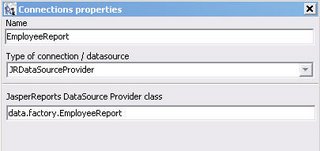 5. สร้าง Report โดยใช้ Report Wizard ตามปกติ โดยจะเห็น Properties ของ Entity Bean เป็น Field ใน Report

ขึ้นตอนจะเป็นดังนี้
1. ที่ Java project Create Entity Bean
2. ที่ Java project Create Class extended from JRAbstractBeanDataSourceProvider
3. ที่ iReport Save Classpath โดยไปที่ menu Option->Classpath แล้ว Add Folder ของ Project แล้ว Save
4. สร้าง Connection โดยเลือกเป็น JRDataSourceProvider และใส่ JRAbstractBeanDataSourceProvider Extends Class
5. สร้าง Report โดยใช้ Report Wizard ตามปกติ โดยจะเห็น Properties ของ Entity Bean เป็น Field ใน Report
ต่อไปมาดูการสร้างอย่างละเอียด
1. สร้าง Entity Bean ที่จะเอาไว้เก็บข้อมูลของ Employee ชื่อว่า Employee
package data.factory;

import java.io.Serializable;
import java.util.Date;

public class Employee implements Serializable {

private static final long serialVersionUID = -2601582524413665788L;
private String empNo;
private String empName;
private String depNo;
private String depName;
private Date startDate;

public Employee(String empNo, String empName,
   String depNo, String depName, Date startDate) {
super();
this.empNo = empNo;
this.empName = empName;
this.depNo = depNo;
this.depName = depName;
this.startDate = startDate;
}
public String getDepNo() {return depNo;}
public void setDepNo(String depNo) {this.depNo = depNo;}
public String getEmpName() {return empName;}
public void setEmpName(String empName) {this.empName = empName;}
public String getEmpNo() {return empNo;}
public void setEmpNo(String empNo) {this.empNo = empNo; }
public Date getStartDate() {return startDate;}
public void setStartDate(Date startDate) {this.startDate = startDate;}
public String getDepName() {return depName;}
public void setDepName(String depName) {this.depName = depName;}
}
2. ที่ Java project Create Class extended from
JRAbstractBeanDataSourceProvider เพื่อที่ให้เป็นตัวที่จะ Query Data มาให้ Report
package data.factory;
import java.sql.*;
import java.util.*;
import java.util.Date;
import data.connect.DBConnect;
import net.sf.jasperreports.engine.*;
import net.sf.jasperreports.engine.data.JRAbstractBeanDataSourceProvider;
import net.sf.jasperreports.engine.data.JRBeanCollectionDataSource;
public class EmployeeReport
extends JRAbstractBeanDataSourceProvider {
public EmployeeReport() {
super(Employee.class);
}
public void dispose(JRDataSource arg0) throws JRException {
}
public JRDataSource create(JasperReport arg0) throws JRException {
ArrayList<Employee> list=new ArrayList<Employee>();
String sSQL="SELECT EmpNo , EmpName , "
     +"StartDate , employee.DepNo,DepName"
     +" FROM employee "
     +" INNER JOIN department"
     +" ON employee.DepNo = department.depno "
     +" where employee.DepNo='S01'"
     +" order by EmpNo";
try{
 Connection connection=DBConnect.getMySqlConnection();
 PreparedStatement prs=connection.prepareStatement(sSQL);
 ResultSet rs=prs.executeQuery();
 while(rs.next()){
   list.add(new Employee(rs.getString("EmpNo")
           ,rs.getString("EmpName")
           ,rs.getString("DepNo"),rs.getString("DepName")
           ,new Date(rs.getDate("StartDate").getTime())));
 }
}
catch(Exception ex){
 ex.printStackTrace();
}
return new JRBeanCollectionDataSource(list);
}
}
3. ที่ iReport Save Classpath โดยไปที่ menu Option->Classpath แล้ว Add Folder ของ Project แล้ว Save
4. สร้าง Connection เป็น JRDataSourceProvider แล้วใส่ชื่อ Class ที่เราสร้างไว้ ลอง Test ดูว่า Connect สำเร็จมั้ย
 5. สร้าง Report โดยใช้ Report Wizard ตามปกติ โดยจะเห็น Properties ของ Entity Bean เป็น Field ใน Report
iReport Tutorial (2/5)
ใน iReport 1.2.5 สามารถสร้าง Connection เพื่อไปดึง Data ได้หลายแบบ ได้แก่
1. การสร้าง Database JDBC connection
ไปที่ menu Data->Connections/Datasources กด New จะมี Dialog ขึ้นมาให้เลือก Connection ก็ใส่ Option ตาม Connect ที่ต้องการ ในตอนนี้จะเลือกเป็น MySQL JDBC Connection ตามรูป
 2. ใช้ Report Wizard สร้าง Report ขึ้นมาจาก Connection ที่สร้างไว้ (menu File-> Report Wizard)
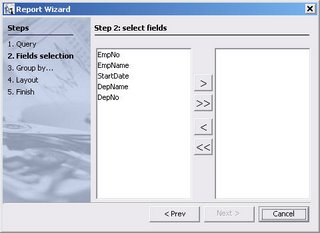
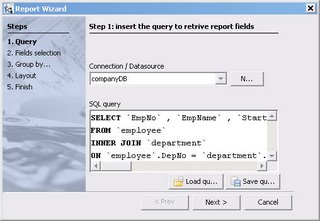 3. ในช่อง SQL Query ให้ใส่ SQL เพื่อดึงข้อมูลที่จะให้แสดงใน Report และเมื่อกด Next จะแสดง Field ทั้งหมดที่ SQL Select ขึ้นมา ให้เลือก Field ที่จะแสดงและกด Next ต่อไป
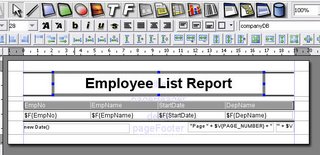
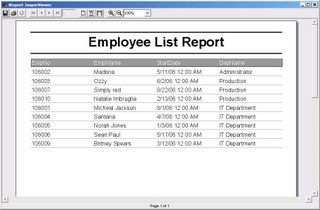
 4. เลือก Group และเลือก Template ที่จะใช้แล้ว ก็จะได้ Report ออกมาแบบนี้ (เลือก Tabular layout, classicT.xml) แก้ Report Title ให้เป็นตามต้องการ
 5. ไปที่ menu Build->Execute (with active connection) เพื่อเป็นการ Preview Report กับ Data
- Database JDBC connection
- XML file datasource
- JavaBeans set Datasource
- Custom JRDatasource
- File CSV datasource
- JRDataSourceProvider
- Hibernate connection
- Spring loaded Hibernate Connection
- EJBQL connection
- Mondrian OLAP connection
1. การสร้าง Database JDBC connection
ไปที่ menu Data->Connections/Datasources กด New จะมี Dialog ขึ้นมาให้เลือก Connection ก็ใส่ Option ตาม Connect ที่ต้องการ ในตอนนี้จะเลือกเป็น MySQL JDBC Connection ตามรูป
 2. ใช้ Report Wizard สร้าง Report ขึ้นมาจาก Connection ที่สร้างไว้ (menu File-> Report Wizard)
 3. ในช่อง SQL Query ให้ใส่ SQL เพื่อดึงข้อมูลที่จะให้แสดงใน Report และเมื่อกด Next จะแสดง Field ทั้งหมดที่ SQL Select ขึ้นมา ให้เลือก Field ที่จะแสดงและกด Next ต่อไป
 4. เลือก Group และเลือก Template ที่จะใช้แล้ว ก็จะได้ Report ออกมาแบบนี้ (เลือก Tabular layout, classicT.xml) แก้ Report Title ให้เป็นตามต้องการ
 5. ไปที่ menu Build->Execute (with active connection) เพื่อเป็นการ Preview Report กับ Data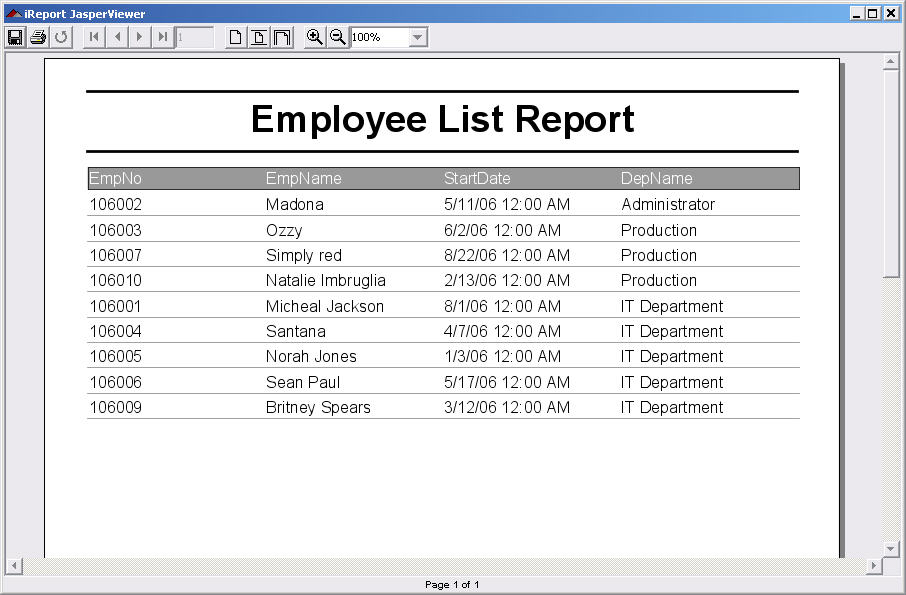
Friday, September 01, 2006
Javascript createPopup
Create Popup to show loading data
function showLoading() {
        var m = window.createPopup();
        var n = m.document.body;
        var width=200;
        var height=100;
        var left = parseInt((screen.availWidth/2) - (width/2));
        var top = parseInt((screen.availHeight/2) - height);
        n.style.border="solid 2px black";
        n.innerHTML = "Loading Data ....";
        m.show( left, top, width, height, document.body);
}
Javascript Scroller Table
จาก http://www.litotes.demon.co.uk/ ไปเจอ Function การทำ Scroller Table แบบใช้งานง่ายๆมา
??? จะ post code ยังไงดีหว่า
??? จะ post code ยังไงดีหว่า
Wednesday, August 30, 2006
iReport Tutorial (1/5)
iReport 1.2.5
ปกติถ้าพูดถึง Crystal Report คงไม่มีใครในวงการ Software Development ที่ไม่รู้จัก แต่คราวนี้อยากจะแนะนำให้รู้จักโปรแกรมอีกตัวหนึ่งที่มีความสามารถไม่ได้ น้อยไปกว่า Crystal Report เลย แถมยังเป็น Open Source อีกด้วย
iReport Features
สามารถเข้าไป download ได้ที่ http://jasperforge.org/sf/projects/ireport
Require Java 1.4 or greater
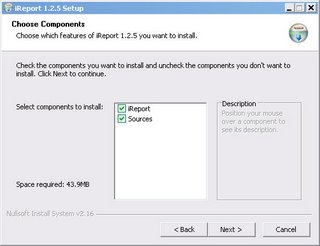
หลังจาก Download มาแล้วก็การติดตั้งบน Windows ซึ่งไม่มีอะไรยุ่งยาก เลือก Option แล้วก็ Next จนเสร็จ
First Look
หลังจากทำการติดตั้งเสร็จ เมื่อเปิดโปรแกรมขึ้นมาก็จะเป็นดังรูป

Basic Concept
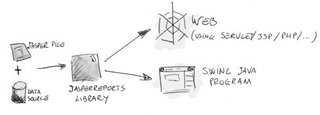
iReport เป็น Tool ที่ทำงานร่วมกับ Java Library สำหรับออก Report ชื่อว่า JasperReports โดยการทำงานของ JasperReorts จะเป็นดังนี้
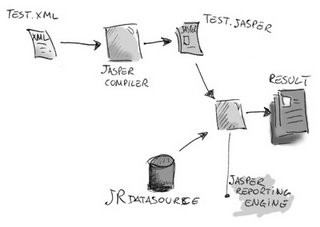
การแสดงผลของ Jasper สามารถแสดงได้หลายแบบได้แก่ HTML และ Swing หรือ Export ออกมาเป็น File แบบต่างๆได้แก่ PDF, Excel, RTF, CSV
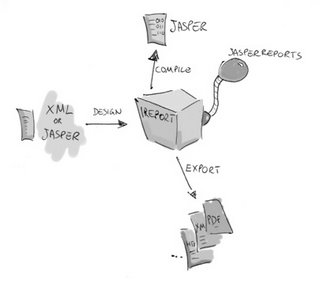
iReport เป็น tool ที่มาช่วยให้สามารถทำงานกับ JasperReports ได้ง่ายขึ้น โดยจะช่วยสร้าง XML ที่จะเป็น Source Code ที่จะถูก Compile เป็น Jasper file แล้วนำไปใช้ออก report ต่อไป
เริ่มต้นสร้าง Report
เริ่มจากการสร้าง Report ง่ายๆกันก่อน
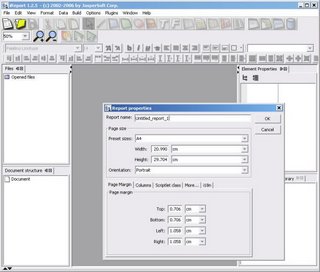
1. ไปที่ File->New Document จะมี Dialog ขึ้นมาให้เลือก ขนาดกระดาษและ option อื่นๆ ก็เลือก A4 ตามมาตรฐาน
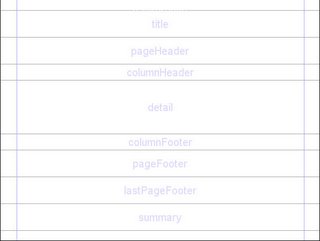
2. จะเห็น Report ว่างๆขึ้นมา โดยจะแบ่งออกเป็นส่วนๆ ซึ่งถ้าใครเคยใช้ Crystal Report หรือ Tool ที่สำหรับสร้าง Report มาก่อนก็จะเข้าใจ (ถ้าไม่เข้าใจจะมีอธิบายต่อไป)
3. เลือก Element ที่ชื่อว่า Static Text (ตามรูป)
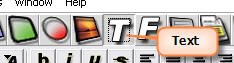
4. สร้าง Static Text ในส่วนของ Title จะเห็น properties ของ Text ที่ Element Properties ซึ่งเราสามารถจัด Format ได้ตามสะดวก หรือจะคลิ้กขวาแล้วเลือก Properties ก็ได้เหมือนกัน

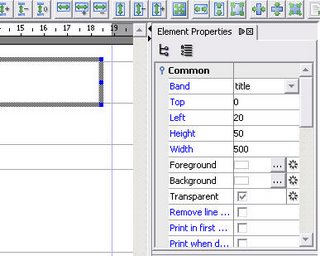
5. ที่ Tab Font ปรับขนาด Font เป็น 36 ,จัดให้อยู่ตรงกลาง และที่ Tab Static Text เปลี่ยนเป็นคำว่า Hello iReport

6. เรียก Menu Build->Execute Empty Data Source ซึ่งโปรแกรมจะบังคับให้เรา Save ก่อน
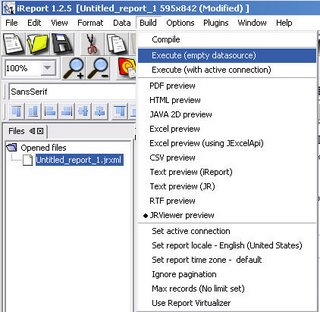
7. Report จะแสดงออกมาใน Report Viewer
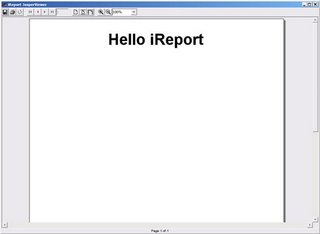
8. ถ้าต้องการให้ Report Export ออกมาในรูปแบบอื่นๆก็เลือกได้จาก Menu Build แล้วสั่ง Execute (File ที่ Export ออกมาปกติจะอยู่ใน Folder เดียวกับที่ Install iReort)
ปกติถ้าพูดถึง Crystal Report คงไม่มีใครในวงการ Software Development ที่ไม่รู้จัก แต่คราวนี้อยากจะแนะนำให้รู้จักโปรแกรมอีกตัวหนึ่งที่มีความสามารถไม่ได้ น้อยไปกว่า Crystal Report เลย แถมยังเป็น Open Source อีกด้วย
iReport Features
- 100% pure java
- Visual reporting
- Retrive data using JDBC, TableModels, JavaBeans, XML, Hibernate, CSV
- Create charts, images, subreport, barcode, crosstab
- support output in PDF, RTF, XML, XLS, CSV, HTM
สามารถเข้าไป download ได้ที่ http://jasperforge.org/sf/projects/ireport
Require Java 1.4 or greater
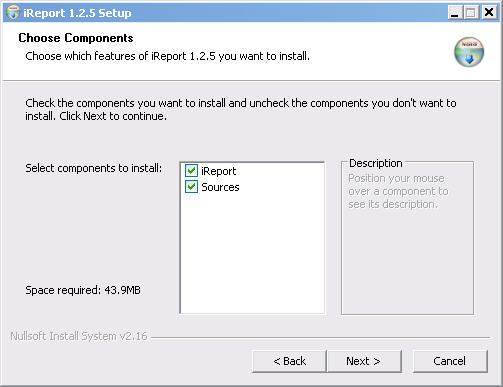
หลังจาก Download มาแล้วก็การติดตั้งบน Windows ซึ่งไม่มีอะไรยุ่งยาก เลือก Option แล้วก็ Next จนเสร็จ
First Look
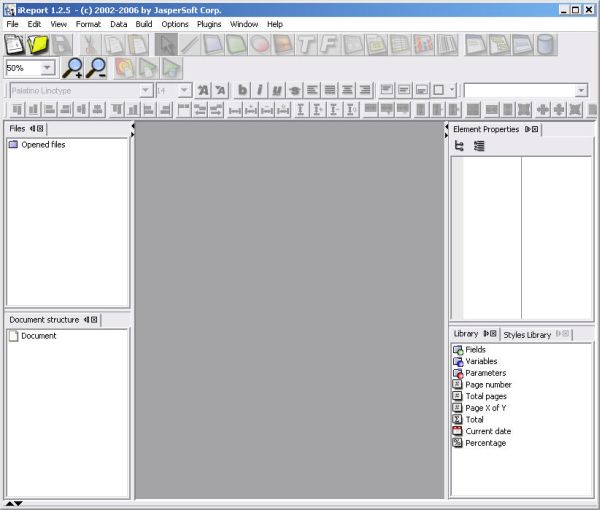
หลังจากทำการติดตั้งเสร็จ เมื่อเปิดโปรแกรมขึ้นมาก็จะเป็นดังรูป
Basic Concept
iReport เป็น Tool ที่ทำงานร่วมกับ Java Library สำหรับออก Report ชื่อว่า JasperReports โดยการทำงานของ JasperReorts จะเป็นดังนี้
- เขียน code ของ Report ให้เป็นตามรูปแบบที่กำหนดไว้ โดย Syntax จะเป็นแบบ XML
- Jasper Compiler จะทำแปลง XML file ออกมาเป็น Report ที่เป็น Jasper file
- JRDatasource จะเป็นส่วนสำหรับรับข้อมูลที่จะแสดงใน Report
- JasperReporting Engine จะทำการรวม Data จาก JRDatasource และ Jasper file แล้วแสดงผลออกไปเป็น Report

การแสดงผลของ Jasper สามารถแสดงได้หลายแบบได้แก่ HTML และ Swing หรือ Export ออกมาเป็น File แบบต่างๆได้แก่ PDF, Excel, RTF, CSV
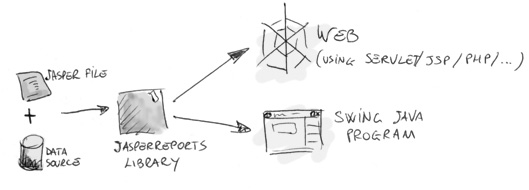
iReport เป็น tool ที่มาช่วยให้สามารถทำงานกับ JasperReports ได้ง่ายขึ้น โดยจะช่วยสร้าง XML ที่จะเป็น Source Code ที่จะถูก Compile เป็น Jasper file แล้วนำไปใช้ออก report ต่อไป

เริ่มต้นสร้าง Report
เริ่มจากการสร้าง Report ง่ายๆกันก่อน
1. ไปที่ File->New Document จะมี Dialog ขึ้นมาให้เลือก ขนาดกระดาษและ option อื่นๆ ก็เลือก A4 ตามมาตรฐาน

2. จะเห็น Report ว่างๆขึ้นมา โดยจะแบ่งออกเป็นส่วนๆ ซึ่งถ้าใครเคยใช้ Crystal Report หรือ Tool ที่สำหรับสร้าง Report มาก่อนก็จะเข้าใจ (ถ้าไม่เข้าใจจะมีอธิบายต่อไป)

3. เลือก Element ที่ชื่อว่า Static Text (ตามรูป)

4. สร้าง Static Text ในส่วนของ Title จะเห็น properties ของ Text ที่ Element Properties ซึ่งเราสามารถจัด Format ได้ตามสะดวก หรือจะคลิ้กขวาแล้วเลือก Properties ก็ได้เหมือนกัน


5. ที่ Tab Font ปรับขนาด Font เป็น 36 ,จัดให้อยู่ตรงกลาง และที่ Tab Static Text เปลี่ยนเป็นคำว่า Hello iReport

6. เรียก Menu Build->Execute Empty Data Source ซึ่งโปรแกรมจะบังคับให้เรา Save ก่อน

7. Report จะแสดงออกมาใน Report Viewer

8. ถ้าต้องการให้ Report Export ออกมาในรูปแบบอื่นๆก็เลือกได้จาก Menu Build แล้วสั่ง Execute (File ที่ Export ออกมาปกติจะอยู่ใน Folder เดียวกับที่ Install iReort)
Thursday, August 24, 2006
Tuesday, August 22, 2006

ASP Pull Service
น่าจะเป็นเรื่องหนึ่งที่จะเอาทำเป็น Service ได้ (แต่อาจจะฟรี)
อีกเรื่องที่นึกออก แต่น่าจะยากในการทำให้ยอมใช้ได้ยากคือเรื่อง Exam ถ้าทำแล้วจะมีใครใช้มั้ยหว่า
อีกเรื่องที่นึกออก แต่น่าจะยากในการทำให้ยอมใช้ได้ยากคือเรื่อง Exam ถ้าทำแล้วจะมีใครใช้มั้ยหว่า
Sunday, August 20, 2006
สอบผ่านล่ะ 070-305
ได้กระดาษมาแผ่นหนึ่ง แล้วก็ความรู้สึกที่อยากจะเอา MCSD มาประดับนามบัตร
To be continue...
To be continue...
Friday, August 18, 2006
Subscribe to:
Posts (Atom)